

Multi UPS Setup with NUT
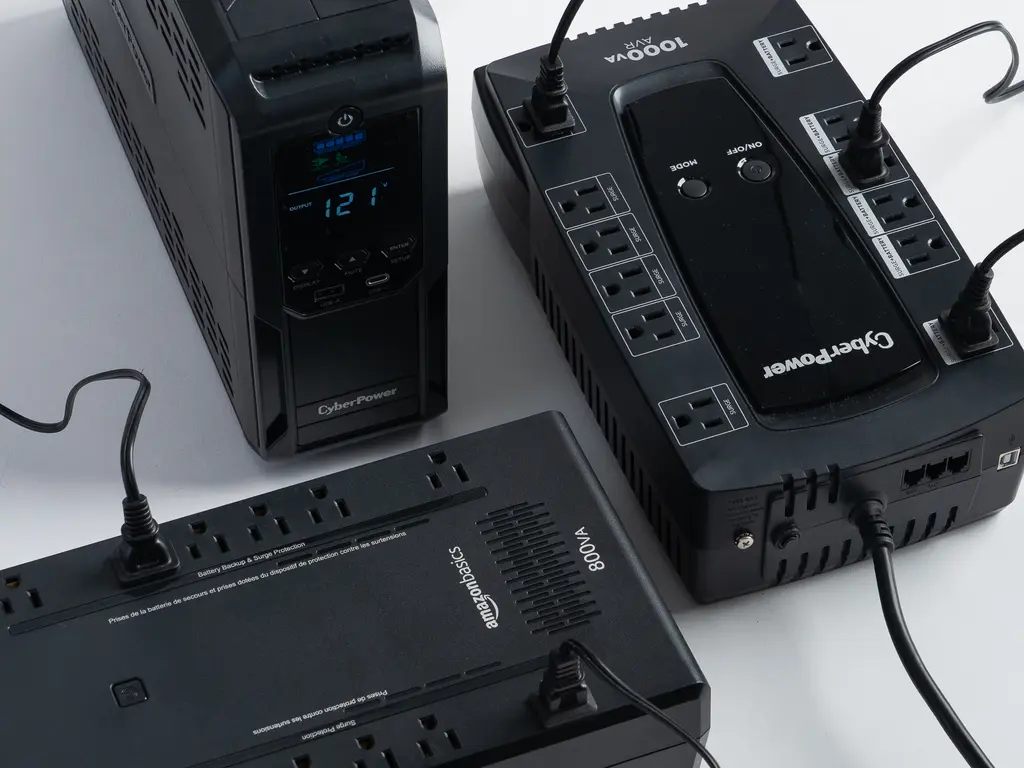
I had outgrown my Uninterruptible Power Supply that I have connected to my homelab rack.
If there was a sudden blip in the electricity, everything went black fast and that is not good for either my data or my sanity.
In this blog post I will take you with me on the changes I did and how I corrected this problem both by selecting new UPS and setting up NUT for multi UPS setup for multiple devices.
Understand Power Usage
| Component | Qty | Estimated watts each | Estimated subtotal | Basis |
|---|---|---|---|---|
| Synology DS1621+ | 1 | 51.22 W | 51.22 W | Synology actual draw for the whole NAS, measured fully loaded with WD 1 TB HDDs. |
| Synology DX517 | 1 | 29.9 W | 29.9 W | Synology actual draw for the whole expansion unit, measured fully loaded with WD 1 TB HDDs. |
| Kingston KC3000 2 TB NVMe cache SSD | 2 | 0.36 W average, 2.8 W max read, 9.9 W max write | 0.72 W average, 5.6 W max read, 19.8 W max write | Official Kingston power figures for the 2048 GB model. (Kingston Technology Company) |
| UniFi USW Pro 24 | 1 | 30 W | 30 W | Ubiquiti max power consumption. (Tech Specs) |
| UniFi UXG Max | 1 | 9.6 W | 9.6 W | Ubiquiti max power consumption. (Tech Specs) |
| Minisforum MS-A2 | 1 | about 240 W ceiling | about 240 W | Official adapter rating is 19 V / 12.63 A, which implies about 240 W as an upper planning ceiling. Actual draw is usually lower, but this is the safe UPS-sizing number. (Minisforum) |
| UniFi CloudKey+ | 1 | 12.95 W | 12.95 W |
At full this ends around ~360 W.
~375 to 400 W if you budget conservatively for everything.
This mimics the reading from the socket as well in my HomeAssistant and the peaks.
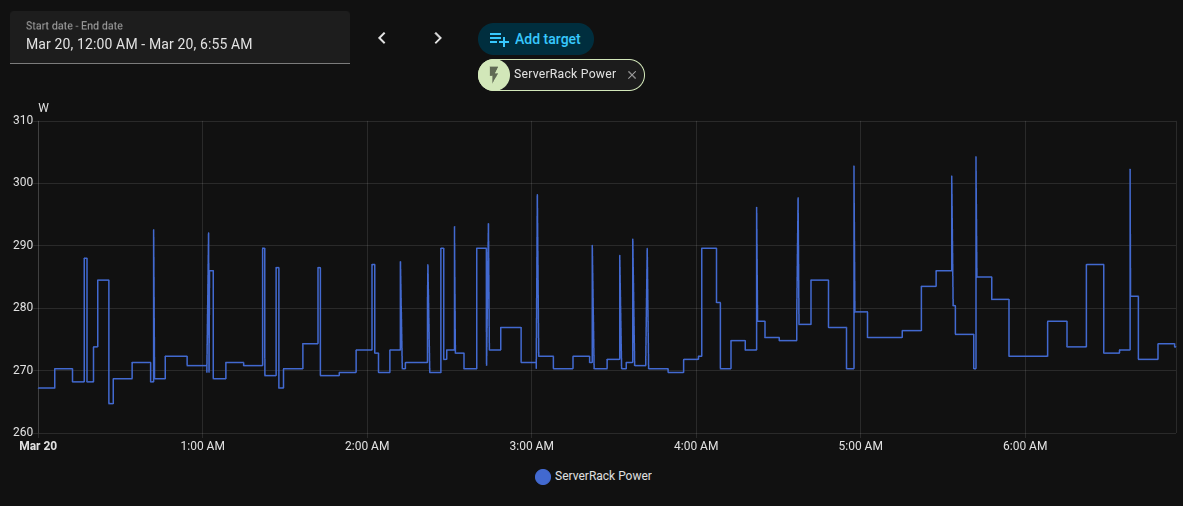
The UPS I had connected to my equipment had a 1000 VA / 600 W output, however the spec for this UPS shows that you should get 6.5 min at half load on the UPS and 0.5 min at full load as it has 2x 12V / 7 Ah batteries.
Around 4 to 6 minutes on a healthy, fully charged battery. This is an estimate based on the manufacturer’s published half-load and full-load runtimes, not a directly stated runtime value. As this UPS is some years old and batteries degrade over time the result is total blackout.
The other thing that complicates things is that just having a UPS connected might help for small blips in power, but it will not help longer periods of power loss.
In my setup I have a Proxmox server running a bunch of VMs on the MS-A2.
These VMs have their storage on the NAS.
A complete safe shutdown of Proxmox takes roughly 5 min, so that is cutting it real close on the 4 to 6 minutes with this UPS and that is without the grace period you should be running on the UPS to prevent automated shutdown on small blips.
Simply put, we need more POWER!

UPS Twins have entered the chat
This might be a bit of overkill for my setup, but I need something to grow with me at this point, but bear with me.
The new UPS devices each have 3000 VA / 1800 W with 2 x 12 V / 9 Ah batteries!
And since they are twins we can split the load.
| UPS A | UPS B |
|---|---|
| Synology DS1621+ | UniFi USW Pro 24 |
| Synology DX517 | UniFi UXG Max |
| Kingston KC3000 2 TB NVMe cache SSD | Minisforum MS-A2 |
| UniFi CloudKey+ |
That gives the following numbers for UPS A:
- 81.84 W average
- 86.72 W with SSDs reading
- 100.92 W with SSDs writing
Roughly 55 to 80 minutes for the storage.
For UPS B that has network devices and compute it will draw ~292.55 W and have around 15 to 20 minutes of battery life if MS-A2 is going 100% load and it’s not doing that.
So if it runs on normal workload, it will be more into the 30 to 40 minutes range.
Now that’s good and all, but with this split of load you might say, wait Mikael, UPS B will run out of power long before UPS A. For you, dear reader, you are correct.
Here is where the magic of proper setup comes in and why you should actually connect your UPS devices with the use of USB.
The power of NUT
NUT, short for Network UPS Tools, is an open-source system for monitoring and managing UPS devices. It lets a server read battery and power status from a UPS over USB, serial, or network, and can also share that status with other machines. It is commonly used so systems can shut down cleanly during a power outage instead of crashing when the battery runs out.
While UPS A is connected to the Synology main unit over USB, we connect UPS B to our proxmox server, where we do our configuration.
Synology and UPS A
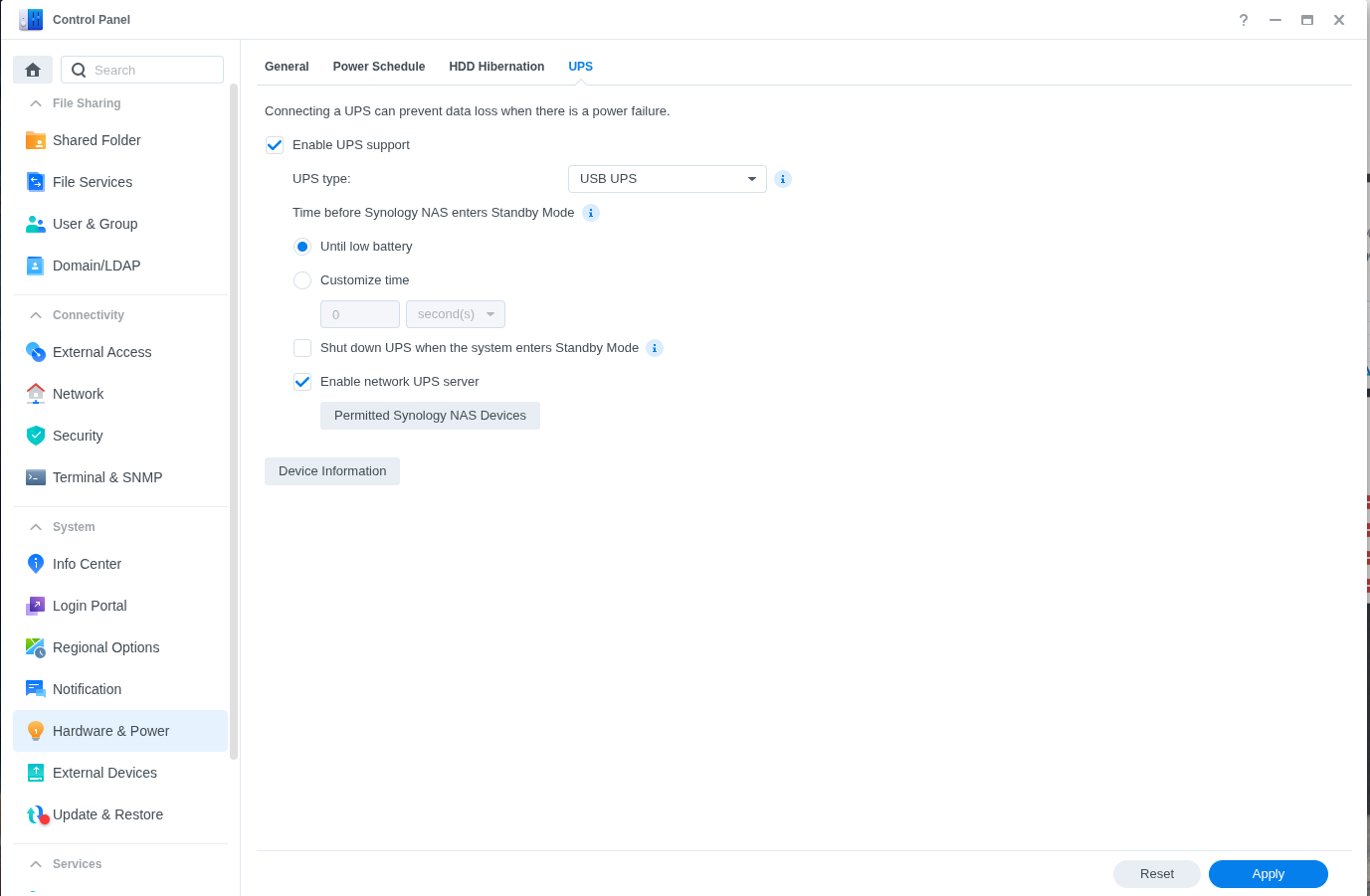
On the Synology under Control Panel -> Hardware & Power -> UPS.
We enable UPS support and set the UPS type to USB UPS.
Next setting that we need to enable is Enable network UPS server and adding the IP that is going to read from the NUT server under Permitted Synology NAS Devices.
This will start up a NUT server on the Synology that we can connect to for reading from the connected UPS.
Now let’s move over to the proxmox side.
Proxmox and UPS B
Now that we are able to get information from UPS A, we can start the main setup of what we need to do a proper shutdown sequence if we are running on battery for X amount of time.
First off we need to install NUT on our proxmox server to fetch UPS A data over the network and UPS B data from the USB.
To install NUT:
apt update
apt install nut
Once NUT is installed we need to set NUT in standalone mode.
/etc/nut/nut.conf:
MODE=standalone
Next up is to configure the UPS B config. To do this we need to edit two configs. One with the connection and user cred for reading.
/etc/nut/ups.conf:
[pveups]
   driver = nutdrv_qx
   port = auto
   desc = "UPS directly attached to Proxmox"
/etc/nut/upsd.users:
[pveupsmon]
   password = SUPER_STRONG_RANDOM_PASSWORD
   upsmon primary
Shutdown Sequence
NUT has a service called UPSMON that can connect to our UPS and monitor state of the UPS devices. In its configuration we set what UPS to monitor and point it to scripts.
/etc/nut/upsmon.conf:
RUN_AS_USER nut

# UPS Connections
MONITOR pveups@localhost 1 pveupsmon SUPER_STRONG_RANDOM_PASSWORD primary
MONITOR [email protected] 0 monuser secret secondary

# Shutdown Script
SHUTDOWNCMD "/usr/local/sbin/pve-ups-final-shutdown.sh"

# Configurations
MINSUPPLIES 1
FINALDELAY 5
HOSTSYNC 15
DEADTIME 15
POLLFREQ 5
POLLFREQALERT 5

# Scheduler
NOTIFYCMD "/usr/sbin/upssched"

# Scheduler triggers
NOTIFYFLAG ONLINE SYSLOG+EXEC
NOTIFYFLAG ONBATT SYSLOG+EXEC
NOTIFYFLAG LOWBATT SYSLOG+EXEC
NOTIFYFLAG FSD SYSLOG
NOTIFYFLAG COMMBAD SYSLOG
NOTIFYFLAG COMMOK SYSLOG
NOTIFYFLAG NOCOMM SYSLOG
As you can see in the config gist above, we monitor UPS A as secondary and UPS B as primary followed with the credentials for each UPS. UPS B has the credentials that we set and UPS A has default NUT credentials set by Synology ( monuser/secret).
What this configuration does is monitor devices, pull and trigger on states like;
ONLINE, ONBATT, LOWBATT, NOCOMM and so on.
These triggers will notify /usr/sbin/upssched and based on how long these states last we can trigger the SHUTDOWNCMD script.
Next up is to configure the upssched config.
/etc/nut/upssched.conf:
CMDSCRIPT /usr/local/sbin/pve-ups-scheduler.sh
PIPEFN /run/nut/upssched.pipe
LOCKFN /run/nut/upssched.lock

AT ONBATT pveups@localhost START-TIMER pve_onbatt 120
AT ONLINE pveups@localhost CANCEL-TIMER pve_onbatt
AT LOWBATT pveups@localhost EXECUTE start_shutdown

AT ONBATT [email protected] START-TIMER nas_onbatt 120
AT ONLINE [email protected] CANCEL-TIMER nas_onbatt
AT LOWBATT [email protected] EXECUTE start_shutdown
The config is quite simple.
We tell upssched that we have a script that we want it to use, we give it a PIPE and a LOCK location so it knows last action.
And most important we tell it to start shutdown sequence if ONBATT has lasted more than 2 minutes, Cancel timer if it comes ONLINE and shutdown if LOWBATT.
That is the configuration for the UPS triggers.
Now we need to create the following files:
/usr/local/sbin/pve-ups-scheduler.sh and /usr/local/sbin/pve-ups-final-shutdown.sh
/usr/local/sbin/pve-ups-scheduler.sh:
#!/bin/bash
set -euo pipefail

EVENT="${1:-unknown}"
LOCKFILE=/run/nut/pve-ups-fsd.lock
LOGTAG="nut-upssched"

exec 9>"$LOCKFILE"
if ! flock -n 9; then
   logger -t "$LOGTAG" "FSD already requested, ignoring event: $EVENT"
   exit 0
fi

case "$EVENT" in
   pve_onbatt|nas_onbatt|start_shutdown)
       logger -t "$LOGTAG" "Requesting forced shutdown due to event: $EVENT"

       if [ "${DRYRUN:-0}" = "1" ]; then
           logger -t "$LOGTAG" "DRYRUN: would execute /sbin/upsmon -c fsd"
           exit 0
       fi

       /sbin/upsmon -c fsd
       ;;
   *)
       logger -t "$LOGTAG" "Ignoring unknown event: $EVENT"
       ;;
esac
What this script does is that it takes EVENTS from upssched and parses them into actions.
It will take the lock file into account, do logging with the tag nut-upssched, and if the “timer” has passed its 2 minutes mark in upssched it will execute /sbin/upsmon -c fsd (force shutdown script in upsmon).
This script also has a DRYRUN built into it if you want to do tests without suddenly starting the sequence. This can be done by setting DRYRUN=1 in front of your commands.
/usr/local/sbin/pve-ups-final-shutdown.sh:
#!/bin/bash
set -euo pipefail

LOGTAG="pve-ups-final"
LOCKFILE=/run/pve-ups-final.lock

exec 9>"$LOCKFILE"
if ! flock -n 9; then
   logger -t "$LOGTAG" "Shutdown workflow already running"
   exit 0
fi

logger -t "$LOGTAG" "Starting UPS shutdown workflow"

if [ "${DRYRUN:-0}" = "1" ]; then
   logger -t "$LOGTAG" "DRYRUN: would run pvenode stopall --timeout 120 --force-stop 1"
else
   pvenode stopall --timeout 120 --force-stop 1 || true
fi

for _ in $(seq 1 96); do
   running_vms=$(qm list 2>/dev/null | awk 'NR>1 && $3=="running"{c++} END{print c+0}')
   running_cts=$(pct list 2>/dev/null | awk 'NR>1 && $2=="running"{c++} END{print c+0}')

   if [ "${DRYRUN:-0}" = "1" ]; then
       logger -t "$LOGTAG" "DRYRUN: would check whether guests are stopped"
       break
   fi

   if [ "$running_vms" -eq 0 ] && [ "$running_cts" -eq 0 ]; then
       logger -t "$LOGTAG" "All guests are stopped"
       break
   fi

   sleep 5
done

if [ "${DRYRUN:-0}" = "1" ]; then
   logger -t "$LOGTAG" "DRYRUN: would sync disks"
else
   sync
fi

sleep 10

if [ "${DRYRUN:-0}" = "1" ]; then
   logger -t "$LOGTAG" "DRYRUN: would send NAS shutdown over SSH"
else
   if /usr/bin/ssh -o BatchMode=yes -o ConnectTimeout=10 [email protected] '/usr/syno/sbin/synopoweroff'; then
       logger -t "$LOGTAG" "NAS shutdown command sent successfully"
   else
       logger -t "$LOGTAG" "NAS shutdown command failed, relying on Synology UPS safe mode fallback"
   fi
fi

sleep 30

if [ "${DRYRUN:-0}" = "1" ]; then
   logger -t "$LOGTAG" "DRYRUN: would shut down Proxmox host"
else
   logger -t "$LOGTAG" "Shutting down Proxmox host"
   /sbin/shutdown -h now
fi
This script has similar logic, but with some important executions. Most importantly these parts:
# Send the command to start turning off VMs.
pvenode stopall --timeout 120 --force-stop 1 || true
# Loop and wait for all VMs to be off
for _ in $(seq 1 96); do
   running_vms=$(qm list 2>/dev/null | awk 'NR>1 && $3=="running"{c++} END{print c+0}')
   running_cts=$(pct list 2>/dev/null | awk 'NR>1 && $2=="running"{c++} END{print c+0}')

   if [ "$running_vms" -eq 0 ] && [ "$running_cts" -eq 0 ]; then
       logger -t "$LOGTAG" "All guests are stopped"
       break
   fi

   sleep 5
# Sync DISK IO
sync
# SSH in to Synology and tell it to shutdown
# Put SSH Key for root user on PVE on root user on Synology
/usr/bin/ssh -o BatchMode=yes -o ConnectTimeout=10 [email protected] '/usr/syno/sbin/synopoweroff'
# finally shut down pve server
/sbin/shutdown -h now
Now we just need to set the correct permissions on the files.
chmod 750 /usr/local/sbin/pve-ups-scheduler.sh
chmod 750 /usr/local/sbin/pve-ups-final-shutdown.sh
chown root:nut /usr/local/sbin/pve-ups-scheduler.sh
chown root:root /usr/local/sbin/pve-ups-final-shutdown.sh
It is also important to check if your scripts have any issues with them. These commands will print nothing if you have no errors in your scripts.
bash -n /usr/local/sbin/pve-ups-scheduler.sh
echo $?
bash -n /usr/local/sbin/pve-ups-final-shutdown.sh
echo $?
Both echo commands should give the exid code 0, this means that the script validation has passed.
If no errors then you can restart the following services:
systemctl restart nut-driver.target
systemctl restart nut-server
systemctl restart nut-monitor
Dryrun Testing
It’s a good thing to do tests to see if your configuration is done correctly and this is also the reason we have the DRYRUN functionality coded into our scripts.
But first, let us see if NUT can read data from our UPS devices.
root@pve1:~# upsc pveups@localhost
Init SSL without certificate database
battery.charge: 100
battery.voltage: 27.1
battery.voltage.high: 26.00
battery.voltage.low: 20.80
battery.voltage.nominal: 24.0
device.type: ups
driver.debug: 0
driver.flag.allow_killpower: 0
driver.name: nutdrv_qx
driver.parameter.pollfreq: 30
driver.parameter.pollinterval: 2
driver.parameter.port: auto
driver.parameter.productid: 5161
driver.parameter.synchronous: auto
driver.parameter.vendorid: 0665
driver.state: quiet
driver.version: 2.8.1
driver.version.data: Voltronic-QS 0.09
driver.version.internal: 0.36
driver.version.usb: libusb-1.0.28 (API: 0x100010a)
input.voltage: 232.6
input.voltage.fault: 232.6
output.current.nominal: 13.0
output.frequency: 50.1
output.frequency.nominal: 50
output.voltage: 232.6
output.voltage.nominal: 230
ups.beeper.status: enabled
ups.delay.shutdown: 30
ups.delay.start: 180
ups.firmware.aux: PM-H
ups.load: 0
ups.productid: 5161
ups.status: OL
ups.type: offline / line interactive
ups.vendorid: 0665


root@pve1:~# upsc [email protected]
Init SSL without certificate database
battery.charge: 100
battery.voltage: 27.10
battery.voltage.high: 26.00
battery.voltage.low: 20.80
battery.voltage.nominal: 24.0
device.type: ups
driver.name: nutdrv_qx
driver.parameter.pollfreq: 30
driver.parameter.pollinterval: 5
driver.parameter.port: auto
driver.parameter.synchronous: no
driver.version: DSM7-1-1-42930-workplus-version2-repack-42930-220712
driver.version.data: Mustek 0.07
driver.version.internal: 0.28
input.current.nominal: 13.0
input.frequency: 50.1
input.frequency.nominal: 50
input.voltage: 232.6
input.voltage.fault: 232.6
input.voltage.nominal: 230
output.voltage: 232.6
ups.beeper.status: enabled
ups.delay.shutdown: 30
ups.delay.start: 180
ups.load: 7
ups.productid: 5161
ups.status: OL
ups.type: offline / line interactive
ups.vendorid: 0665
As you can see if the configuration is done correctly both ups are reporting data to NUT and both ups.status show OL meaning they are ONLINE.
Next let’s do a DRYRUN first with pve-ups-scheduler.sh and check journalctl:
root@pve1:~# su -s /bin/bash -c 'DRYRUN=1 /usr/local/sbin/pve-ups-scheduler.sh pve_onbatt' nut

root@pve1:~# journalctl -t nut-upssched -n 20 --no-pager
Mar 22 00:36:02 pve1 nut-upssched[350809]: Requesting forced shutdown due to event: pve_onbatt
Mar 22 00:36:02 pve1 nut-upssched[350810]: DRYRUN: would execute /sbin/upsmon -c fsd
and the same with /usr/local/sbin/pve-ups-final-shutdown.sh.
Note that this will take a bit longer to run, so don’t panic.
root@pve1:~# DRYRUN=1 /usr/local/sbin/pve-ups-final-shutdown.sh
root@pve1:~# journalctl -t pve-ups-final -n 50 --no-pager
Mar 22 00:38:32 pve1 pve-ups-final[353573]: Starting UPS shutdown workflow
Mar 22 00:38:32 pve1 pve-ups-final[353574]: DRYRUN: would run pvenode stopall --timeout 120 --force-stop 1
Mar 22 00:38:33 pve1 pve-ups-final[353582]: DRYRUN: would check whether guests are stopped
Mar 22 00:38:33 pve1 pve-ups-final[353583]: DRYRUN: would sync disks
Mar 22 00:38:43 pve1 pve-ups-final[353859]: DRYRUN: would send NAS shutdown over SSH
Mar 22 00:39:13 pve1 pve-ups-final[354418]: DRYRUN: would shut down Proxmox host
In both of the journalctl entries we can see that it would run sequentially as we want it to.
Real test
Now for a real test run.
You can decide for yourself if you want to do this or if you want to do a I Trust You Bro.
Anyways here are the results after I cut the power to the rack.
| Time | Event |
|---|---|
| 00:00:00 | Cut Power |
| 00:02:10 | Requesting forced shutdown due to event: pve_onbatt |
| 00:02:10 | Requesting forced shutdown due to event: nas_onbatt |
| 00:02:10 | Starting UPS shutdown workflow |
| 00:07:32 | All guests are stopped |
| 00:08:04 | NAS shutdown command sent successfully |
| 00:08:35 | Shutting down Proxmox host |
The last reading in NUT showed battery.charge on:
| UPS A | UPS B |
|---|---|
| ~79 % | ~ 80 % |
Graphs at the time in Home Assistant:
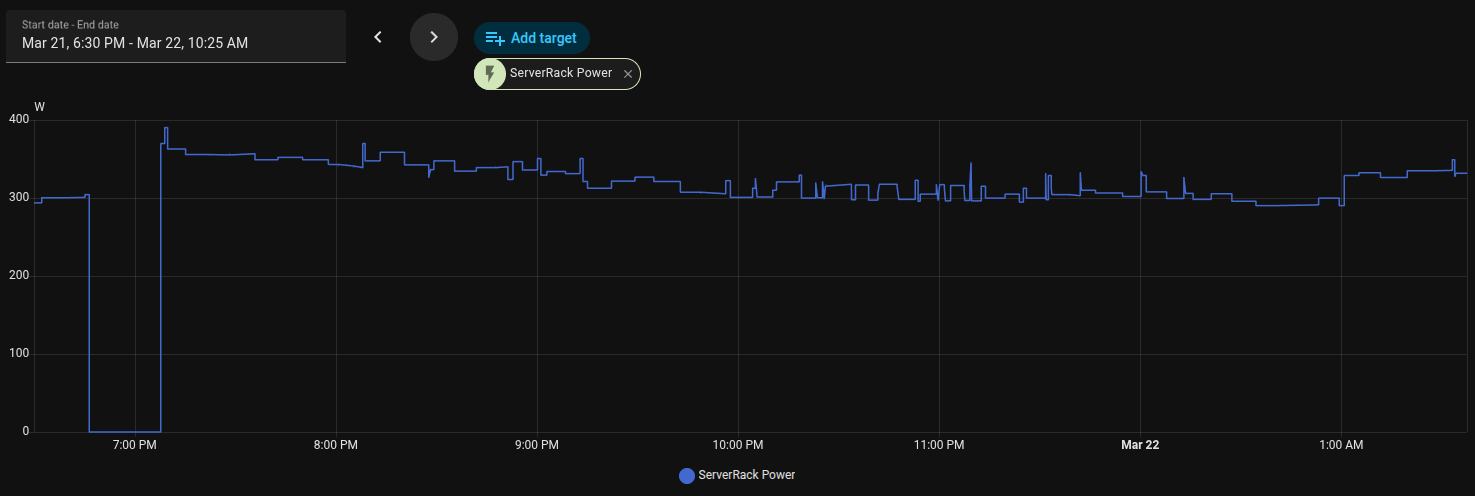
Looks like my ~375 to 400 W budget estimate was quite spot on.
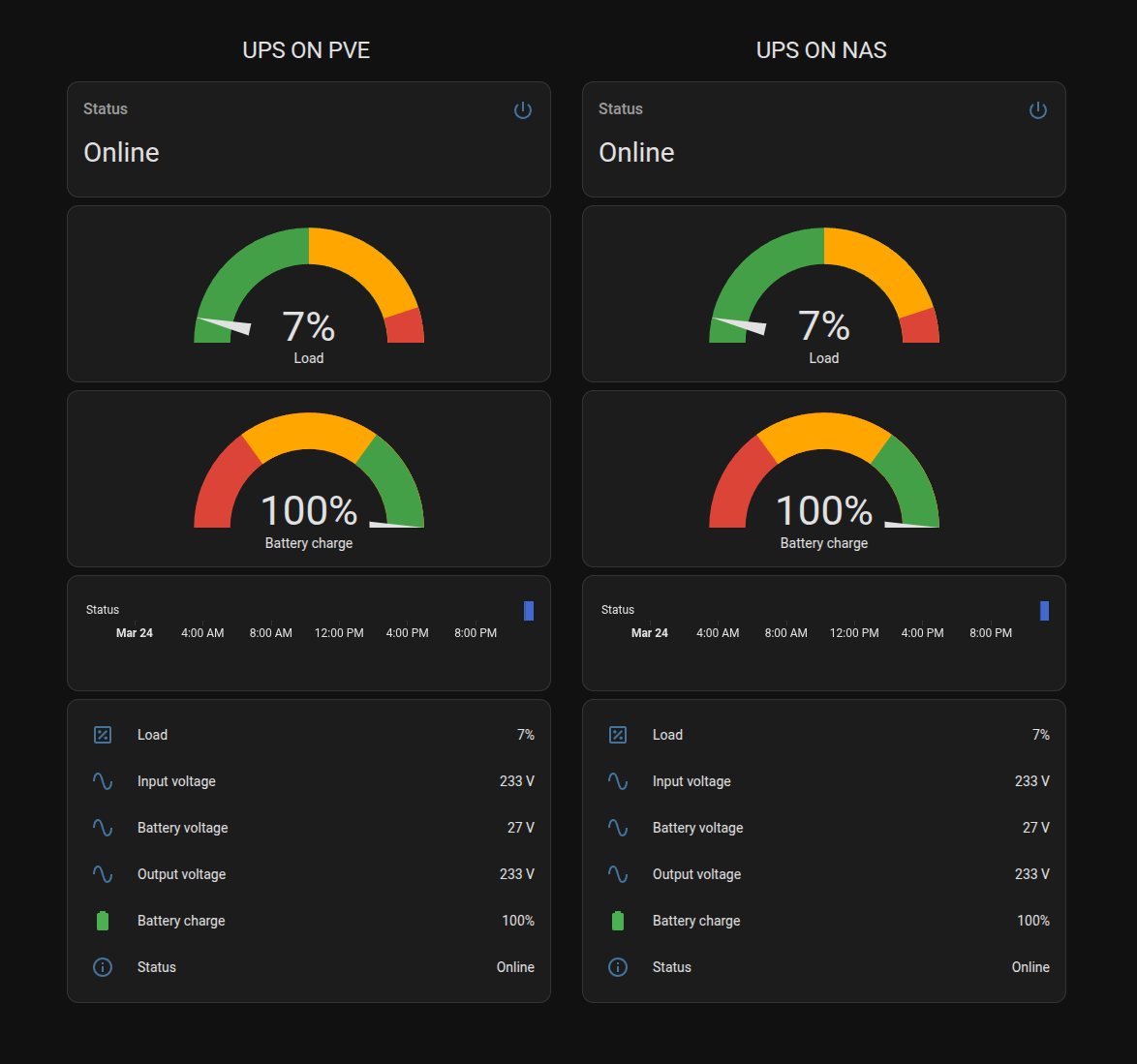
Even created a Home Assistent dashboard for looking at the UPS devices at a glance.
Might do some automation based on statuses to notify me on the phone if anything changes drastically.
Conclusion
Now I am ready for any power outage coming or blips in the electricity grid without rolling a dice on corrupting my data.
You might say that these UPS devices are a bit overpowered, but consider that these are consumer devices and this might be a more common setup for most people, you can’t put a price on making sure your data is protected with a good amount of overhead.